Delete a modifier
If you need to remove a modifier to food item or order, with the tab open in CPS Air, do the following:
- Select the modifier no longer needed. The modifier screen displays with that modifier containing a number in its top-right corner.
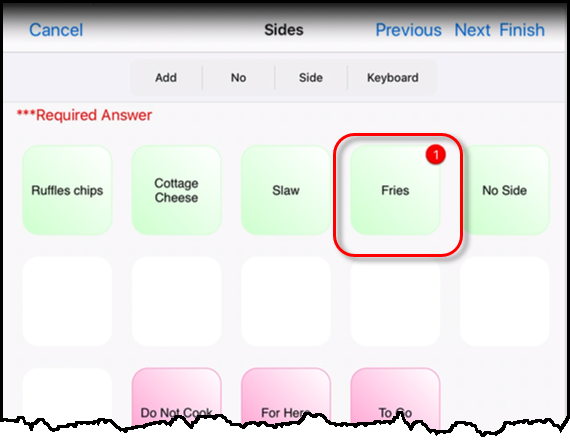
- Select the modifier button that is highlighted with a number in the top-right corner to remove that number. The modifier is now removed from the right-hand side of the screen.
Note: If the modifier does have a number higher than one, continue to select that button until the number is gone. Some modifiers may have a price associated with it that will ring an up-charge for the cost of the extra modifiers so pay close attention to the price in the right-hand side as it goes down.
- Select Finish to return to the tab and process this order as needed.
To see a video on deleting a modifier, click here >>
>>